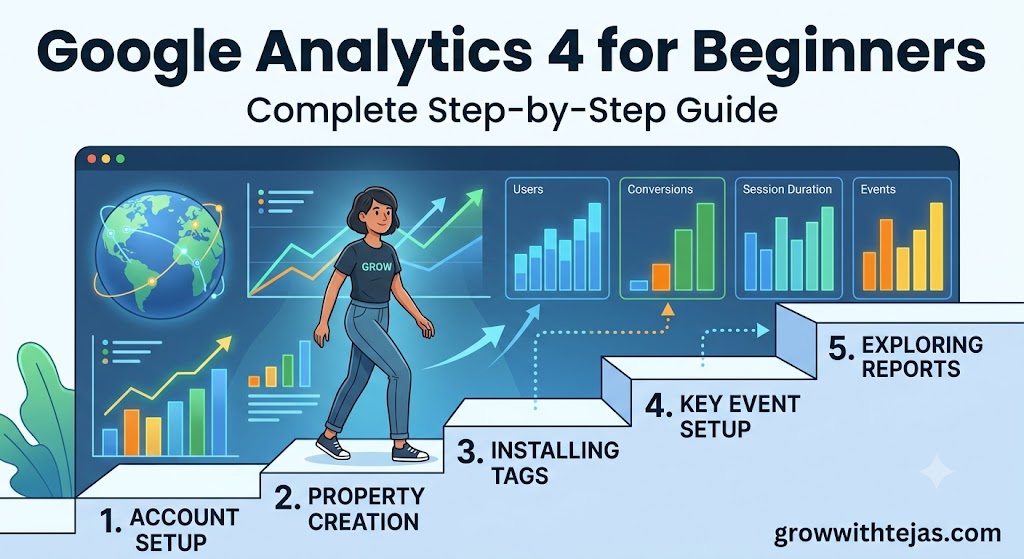
Google Analytics 4 for Beginners
If you own a website, blog, online store, or business website, one of the most important tools you should use is Google Analytics 4 (GA4). It helps you understand who visits your website, where they come from, what they do on your pages, and how you can improve your website to get more traffic and sales.
The best part? Google Analytics 4 is completely free.
In this beginner-friendly guide, you’ll learn everything you need to know about Google Analytics 4—from setup to understanding reports and tracking conversions.
What is Google Analytics 4 (GA4)?
Google Analytics 4 (GA4) is Google’s latest web analytics platform that measures website and app traffic using an event-based data model.
Unlike Universal Analytics (UA), which stopped processing standard data in 2023, GA4 provides more flexible tracking, better privacy controls, AI-powered insights, and cross-device measurement.
With GA4, you can track:
- Website visitors
- Page views
- User engagement
- Traffic sources
- Button clicks
- Downloads
- Video views
- Purchases
- Form submissions
- Sales and revenue
Why Should Beginners Use GA4?
Whether you’re a blogger, freelancer, business owner, or digital marketer, GA4 helps you make smarter decisions.
Benefits include:
- Free website analytics
- Real-time visitor tracking
- SEO performance insights
- Understand customer behavior
- Measure conversions
- Track marketing campaigns
- AI-generated insights
- Works with Google Ads
- Works with Google Search Console
- Better privacy compliance
How Google Analytics 4 Works
GA4 records every interaction as an event.
Instead of focusing only on pageviews, it tracks user actions.
Examples include:
| Event | Meaning |
|---|---|
| page_view | User opened a page |
| scroll | Visitor scrolled down |
| click | Button clicked |
| purchase | Product purchased |
| form_submit | Contact form submitted |
| file_download | PDF downloaded |
| video_start | Video played |
This event-based model provides much deeper insights into user behavior.
Step 1: Create a Google Analytics Account
Follow these steps:
- Sign in with your Google account.
- Go to Google Analytics.
- Click Start Measuring.
- Enter your Account Name.
- Create a Property.
- Select your country.
- Choose your time zone.
- Select your currency.
- Click Next.
Step 2: Create a GA4 Property
Enter:
- Website Name
- Industry
- Business Size
Click Create.
Accept Google’s Terms and Conditions.
Step 3: Add Your Website
Select
Web
Enter:
- Website URL
- Website Name
Example:
Website:
https://growwithtejas.com
Click
Create Stream
Step 4: Install the Tracking Code
You’ll receive a Measurement ID like:
G-XXXXXXXXXX
You can install GA4 in several ways:
Option 1: Google Tag Manager (Recommended)
- Easy
- No coding
- Flexible
Option 2: WordPress Plugin
Popular plugins include:
- Site Kit by Google
- WPCode
- MonsterInsights
Option 3: Manual Installation
Paste the tracking code into the <head> section of your website.
Step 5: Verify Data Collection
Open your website in another browser tab.
Go to
Reports → Realtime
If everything is configured correctly, you’ll see yourself as an active user within a few minutes.
Understanding the GA4 Dashboard
The dashboard includes several useful reports.
Home
Shows:
- Active users
- Sessions
- Engagement
- Revenue
- Recent trends
Realtime Report
Displays:
- Current visitors
- Pages being viewed
- Traffic source
- Country
- Device
- User actions
Useful for checking whether tracking is working.
Acquisition Report
This report answers:
Where are visitors coming from?
Traffic sources include:
- Google Search
- Direct
- Social Media
- Paid Ads
- Referral websites
Example:
| Source | Visitors |
|---|---|
| Organic Search | 1,500 |
| Direct | 700 |
| 300 | |
| 250 |
Engagement Report
Shows:
- Most visited pages
- Average engagement time
- Events
- Landing pages
This helps identify your best-performing content.
Demographics Report
Learn about your audience:
- Country
- City
- Language
- Age
- Gender
- Interests
This helps create content tailored to your audience.
Tech Report
Shows:
- Mobile users
- Desktop users
- Browser
- Operating system
- Screen resolution
This information helps optimize your website for different devices.
Important Metrics Every Beginner Should Know
Users
Number of unique visitors.
Sessions
Total visits to your website.
Engaged Sessions
Sessions lasting over 10 seconds, containing multiple page views, or including a conversion.
Engagement Rate
Percentage of engaged sessions.
Higher is generally better.
Average Engagement Time
The average time users actively spend on your website.
Events
Actions performed by visitors, such as clicks, downloads, or purchases.
Conversions
Key actions that matter to your business, including:
- Contact form submissions
- Purchases
- Newsletter signups
- Appointment bookings
How GA4 Helps Improve SEO
Google Analytics doesn’t directly improve rankings, but it provides valuable data to enhance your SEO strategy.
You can:
- Identify top-performing pages
- Find pages with low engagement
- Improve internal linking
- Analyze user behavior
- Discover high-converting content
- Track organic traffic growth
- Measure content performance over time
Connect GA4 with Google Search Console
Connecting these tools provides a more complete view of your website’s performance.
Benefits include:
- Keyword data
- Click-through rate (CTR)
- Search impressions
- Average ranking position
- Landing page performance
Together, they offer stronger SEO insights than using either tool alone.
Best Practices for Beginners
To get the most from GA4:
- Check reports weekly.
- Track important conversions.
- Create meaningful events.
- Use Google Tag Manager when possible.
- Filter internal traffic.
- Connect Google Search Console.
- Connect Google Ads if running campaigns.
- Review engagement metrics regularly.
- Keep your analytics setup updated.
Common Mistakes Beginners Make
Avoid these frequent issues:
- Not installing the tracking code correctly
- Ignoring conversion tracking
- Failing to test events
- Checking analytics only occasionally
- Looking only at page views
- Not excluding internal traffic
- Making decisions from too little data
Frequently Asked Questions (FAQs)
Is Google Analytics 4 free?
Yes. GA4 is free for most websites and businesses.
Can beginners use GA4?
Absolutely. Once set up, the interface becomes easier to understand with regular use.
Do I need coding knowledge?
No. WordPress plugins and Google Tag Manager make setup simple without coding.
Does GA4 replace Universal Analytics?
Yes. Google Analytics 4 is the standard analytics platform.
Can GA4 track eCommerce sales?
Yes. It supports tracking purchases, revenue, products, and customer journeys.
Does GA4 help with SEO?
Indirectly, yes. It provides user behavior and traffic insights that help improve SEO performance.
Final Thoughts
Google Analytics 4 is one of the most valuable free tools for understanding how people interact with your website. Whether you’re starting a blog, managing a business site, or running an online store, GA4 provides the data you need to make informed decisions.
Start with the basics—install GA4, verify data collection, explore the core reports, and define your important conversions. As you become more comfortable, you can take advantage of advanced features like custom events, audiences, and predictive insights. Consistent analysis will help you grow your traffic, improve user experience, and achieve your business goals.